
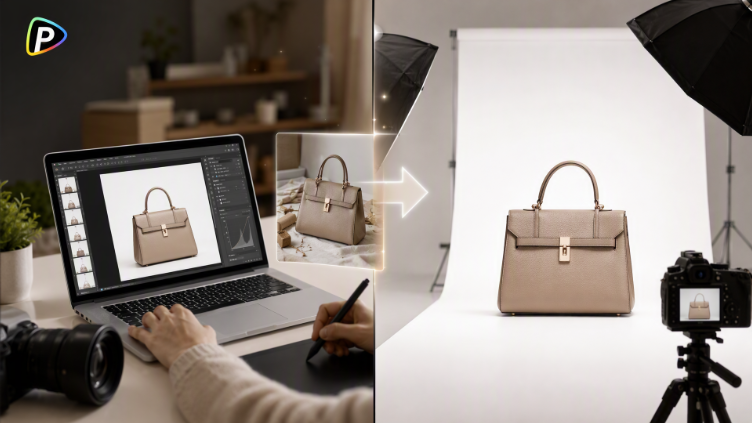
A good product photo does not need a professional studio, but it should be clear, clean, and consistent. In practice, many online sellers work with phone photos or images from suppliers, so problems such as messy backgrounds, uneven lighting, and distracting objects are hard to avoid.
The Pollo AI photo editor can clean up these images by removing unwanted elements, changing backgrounds, improving lighting, and applying similar edits to multiple photos. The important part is to improve the presentation without changing what the product actually looks like.

Step 1: Start With a Usable Product Photo
AI editing cannot fix every problem in the original image. A photo that is extremely blurry, badly cropped, or too dark may still look poor after editing.
The best starting point is a reasonably clear photo where the entire product is visible. A simple phone photo can work if the product itself is in focus and its important details are easy to see.
It is also worth checking the camera angle first. If a bottle looks unusually wide because it was photographed from the wrong angle, removing the background will not fix that distortion.
Step 2: Upload the Image and Give One Clear Instruction
The Pollo AI photo editor uses a prompt-based workflow. After uploading an image, the user can describe the desired change, choose the available customization options, and generate the result.
Specific instructions tend to work better than broad requests. For example:
"Remove the cluttered background and replace it with a clean white background. Keep the product shape, color, label, and proportions unchanged."
This tells the editor both what to change and what to leave alone.
Avoid changing too much at once
A common mistake is asking for a new background, different lighting, added props, a new composition, and a different visual style in one prompt. The same principle applies when working with tools such as DeepAI video generator: clearer, more focused instructions generally make it easier to control the result. If the result looks wrong, it then becomes difficult to tell which instruction caused the problem.
For product listings, it is usually better to fix the biggest issue first. If the background is the only problem, there is no need to redesign the entire image.
Step 3: Clean Up the Background and Lighting
A messy background can make a product look less polished even when the product itself is perfectly fine. A handbag photographed on a bedroom floor, for example, may have clothes, furniture, or other objects competing for attention.
Pollo AI's official photo editor supports background removal and object removal, as well as image enhancement and relighting. This makes it possible to simplify the scene without having to reshoot the product.
A useful prompt might be:
"Place the product on a simple light background with soft, even lighting. Keep the original product unchanged."
The main thing to watch is color accuracy. Increasing brightness too much can make white products look washed out or alter the appearance of colored products. Strong enhancement can also make textures look unnatural.
Check edges and reflective surfaces
Background removal deserves a closer look around thin handles, straps, transparent packaging, glass, and other complicated edges. These areas can sometimes lose detail during editing.
Reflective products need extra attention as well. A metal bottle or glossy package may pick up reflections that were not in the original photo. If those reflections make the product look different from the real item, the image should be adjusted again.
Step 4: Keep Multiple Product Photos Consistent
A store can have good product photos and still look messy if every image has a different visual style. One product may have a white background, another a gray one, while another has harsh shadows.
Pollo AI says its photo editor can apply similar edits and enhancements to multiple images, helping keep backgrounds, lighting, colors, and overall style more consistent.
For example, a skincare store might use a neutral background, soft lighting, natural colors, and a subtle shadow for an entire product range. Applying the same treatment to the collection can make the product grid look much more cohesive.
The images do not need to be identical. A tall bottle and a flat box will naturally need different framing. What matters is that the overall treatment feels consistent.
Step 5: Review the Edited Image Before Publishing
An AI-edited image should always be checked against the original product before it goes online.
The seller should look closely at the product's shape, color, packaging, labels, logos, and small details. A missing edge or altered label may not be obvious in a quick preview but can become a problem once the image is used on a product page.
The background should also look natural. If the product appears to float, a subtle shadow can help give it some depth. On the other hand, adding too much shadow can make the image look artificial.
For larger catalogs, reviewing the edited images side by side is useful. Differences in brightness, background tone, framing, and product size are much easier to notice this way.
Build a Simple Workflow for Future Product Photos
Once a suitable editing style has been established, the same approach can be reused: start with a clear product photo, fix the main problem, check the details, and review the final image before publishing.
For larger catalogs, Pollo AI also supports batch editing, which can apply similar edits or enhancements to multiple images. This is useful when many products need the same background or visual treatment.
Batch editing still needs a final check. Transparent packaging, reflective surfaces, unusual shapes, and detailed labels may not produce equally good results across every image.
For e-commerce, the goal is not to make every product photo look dramatically different. It is to make the product easy to see, keep its appearance accurate, and give the store a consistent visual presentation. That is where the Pollo AI photo editor can be useful.